

What can I do with the C1 app for Slack?
Use the C1 app for Slack to interact directly with C1 without leaving Slack. Once the C1 app for Slack is installed for your workspace, you and your colleagues can:-
Request access from anywhere in Slack using the
/c1 requestcommand: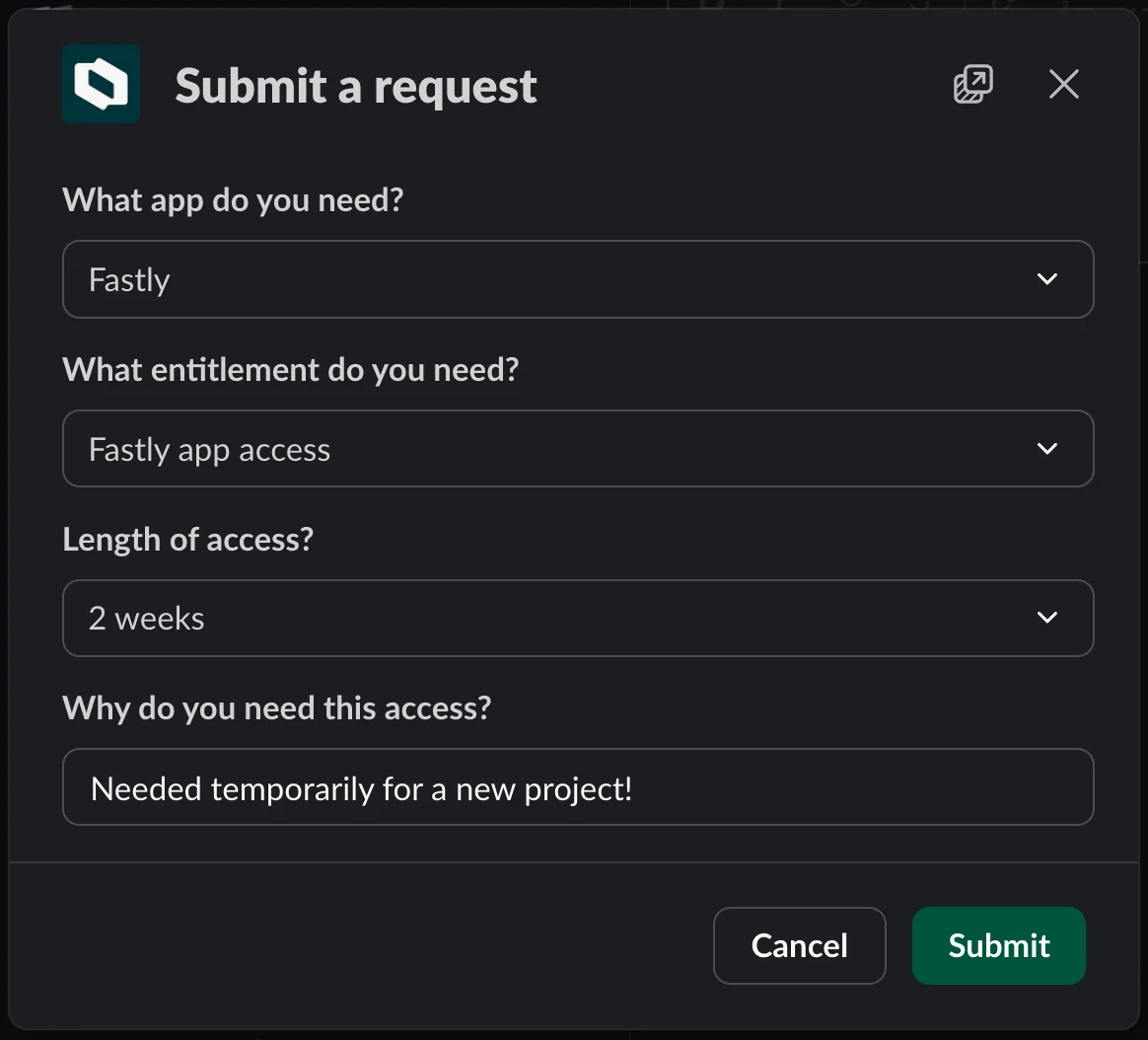
-
Track the progress of your open access requests:
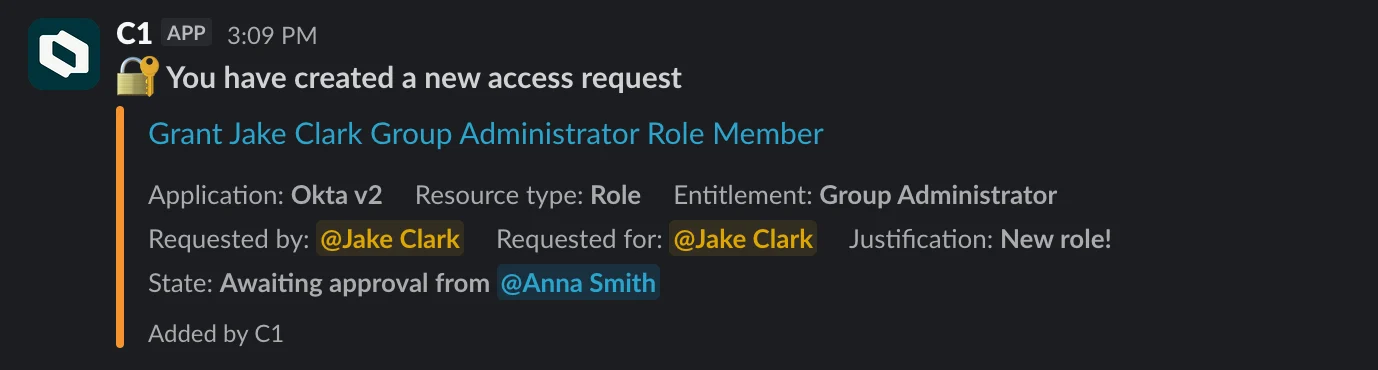
-
Get notified when your review is needed on a colleague’s access request, and approve or deny the request without leaving Slack:
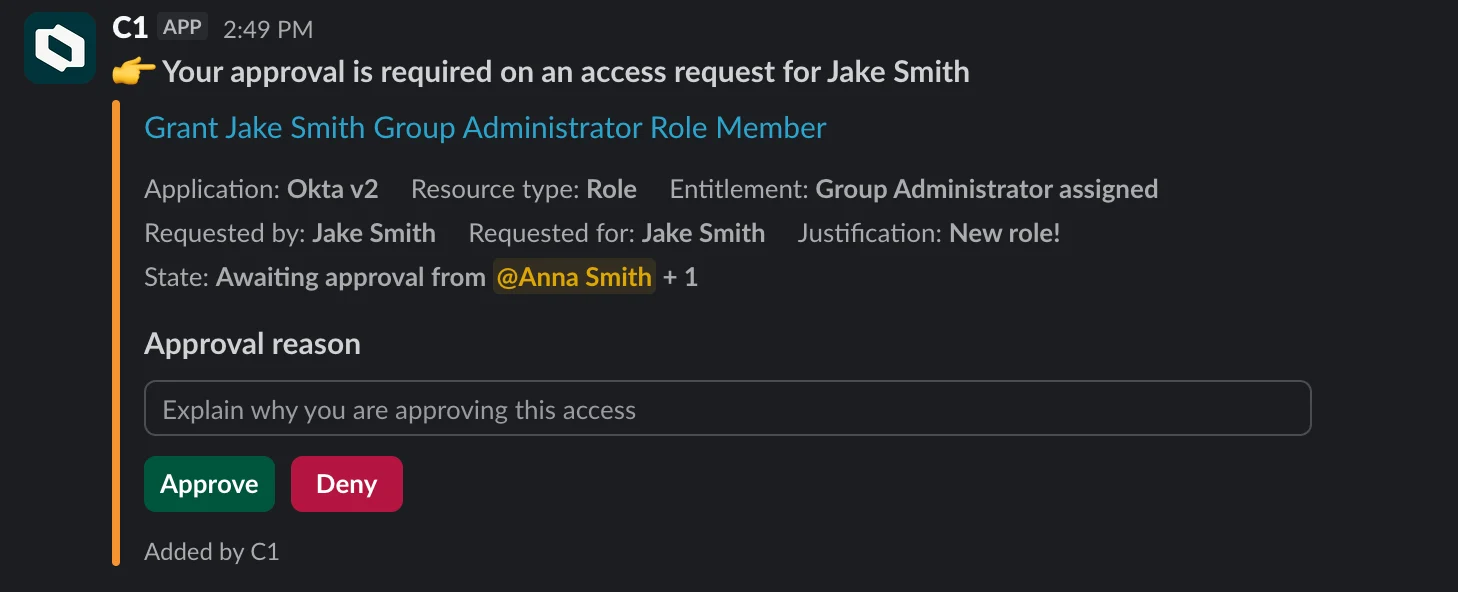
-
Get notified when you have a manual provisioning or deprovisioning assignment, and mark it complete without leaving Slack:
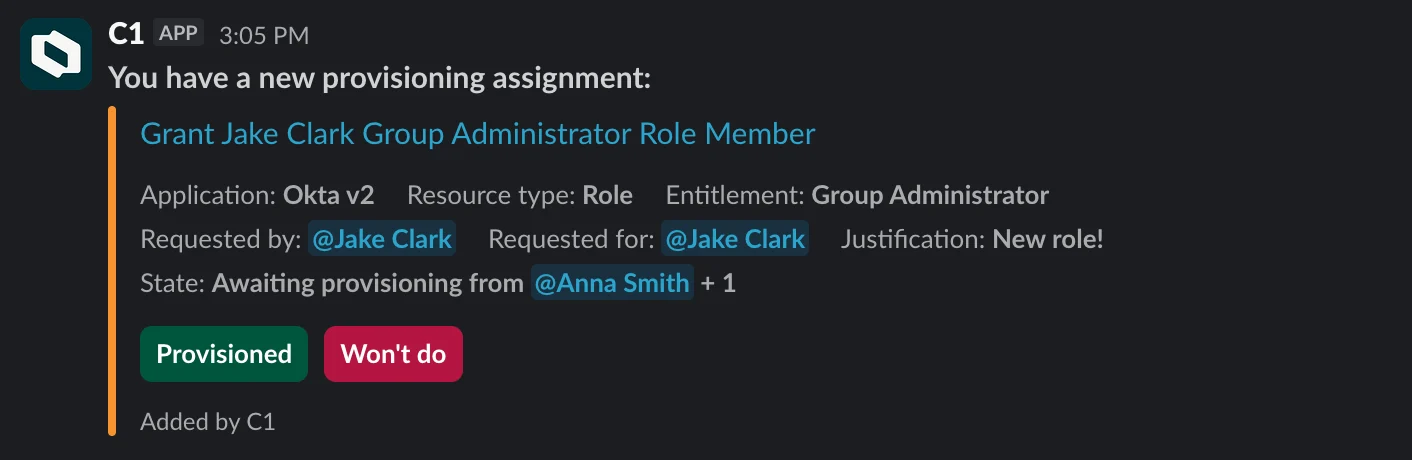
-
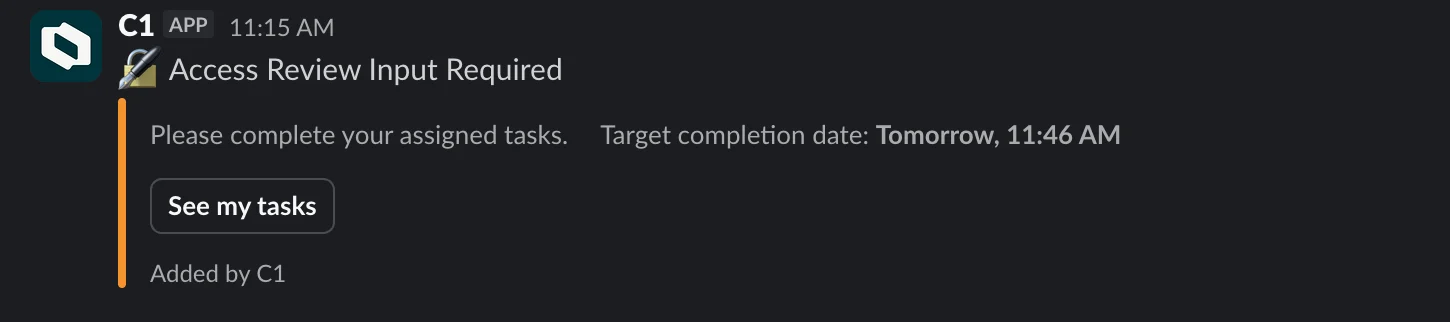
Get notified when there are access review tasks assigned to you as part of an access review campaign:
-
Ask questions about your org’s access data and take action using the C1 AI assistant
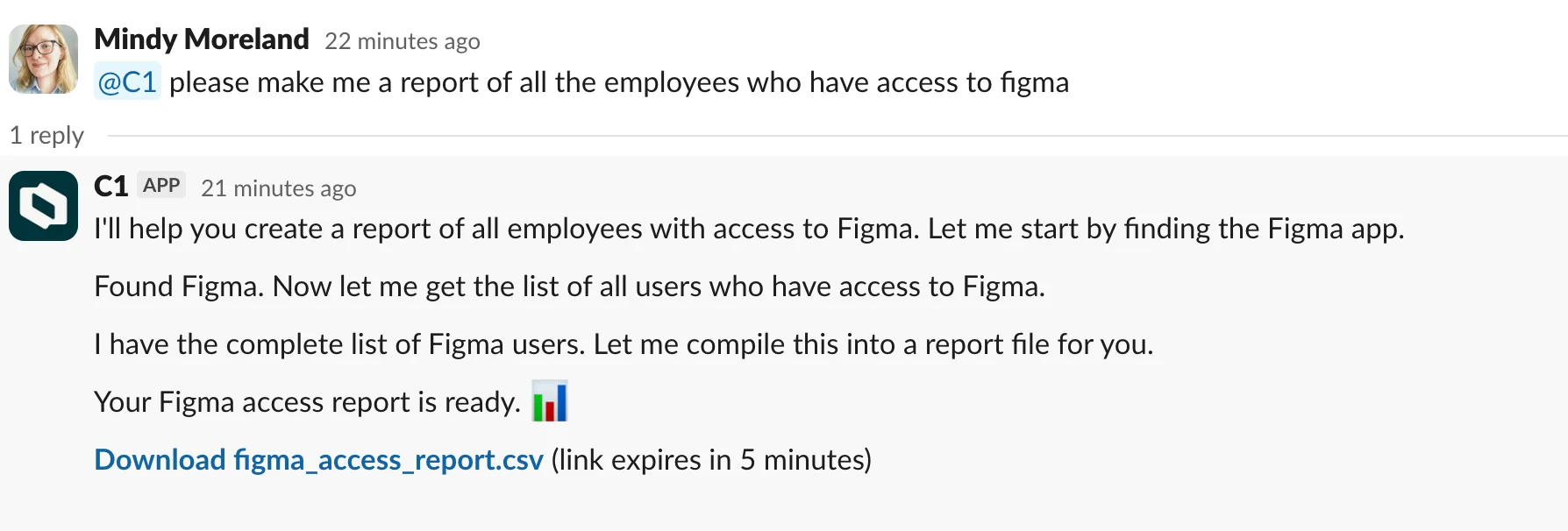
Ask questions and take action with the C1 AI assistant
The C1 AI assistant is available to all C1 users and is enabled by default when the C1 app for Slack is installed. It works like a standard conversational AI — you ask it questions or tell it what you want to do, and it responds in the same language you write in. Open the C1 app in Slack to find a Chat tab where the assistant lives, a History tab to review past conversations, and a New Chat button. For quick access from anywhere in Slack, type@C1 in any channel the app has been added to — the assistant replies in a thread, and each thread is its own conversation. Or add the C1 app as a participant in a direct message to start a private conversation.
When you
@C1 in a channel, the assistant’s response is visible to everyone in that channel. Use a direct message with the C1 app for conversations you want to keep private. To start a DM with the assistant, add C1 as a participant in a new or existing direct message — in a DM, every message you send is answered without needing to @-mention it.- Approve, deny, reassign, or escalate access requests
- Manage access and entitlements
- Configure campaigns and conflict monitors
- Build automations and policies
Your Slack account must be linked to your C1 user account for the assistant to work. If it isn’t linked yet, the assistant will let you know and direct you to your C1 administrator to get set up.
Install the C1 app for Slack for your organization
Approve the C1 app for use in your organization’s Slack workspace.
Done. You’ll be directed back to the C1 Settings page, where you’ll see that your Slack workspace is now connected.
Add the C1 app for Slack to an individual workspace
Done. You can now interact with C1 directly from Slack.
Create a campaign Slack channel
During an access review campaign, the campaign owner can send notifications to fellow campaign owners and reviewers in a new or existing Slack channel.Navigate to the campaign’s Configuration tab.
- If you haven’t yet started the campaign, the Configuration tab is shown before you prepare the campaign and again before you start the campaign.
- If the campaign is in progress, the Configuration tab is available on the campaign’s main page.
Enter a Slack channel name, either an existing channel in your workspace that you’d like to add campaign notifications to, or a name for a new channel you want to create for this purpose. Slack does not accept spaces or special characters in channel names.
Optional. If you’re creating a new Slack channel, enter a description of the channel, up to 250 characters.